
HiPinny Journal
How to Convert Digital Illustrations into Vector Artwork
Many designers struggle when preparing digital illustrations for production, especially when transitioning to vector artwork. Without understanding the unique requirements of manufacturing processes like enamel pin production1, mistakes often lead to delayed timelines, quality issues, or even unusable designs. Let’s break down how to convert your artwork into properly prepped vector files and avoid production headaches.
To convert digital illustrations into vector artwork, you need more than just a file export — ensure your artwork is compatible with production standards by vectorizing outlines, correcting sizing, and using appropriate tools. Avoid common pitfalls, like poor file compatibility or misaligned scaling, by sticking to a streamlined vectorization process.
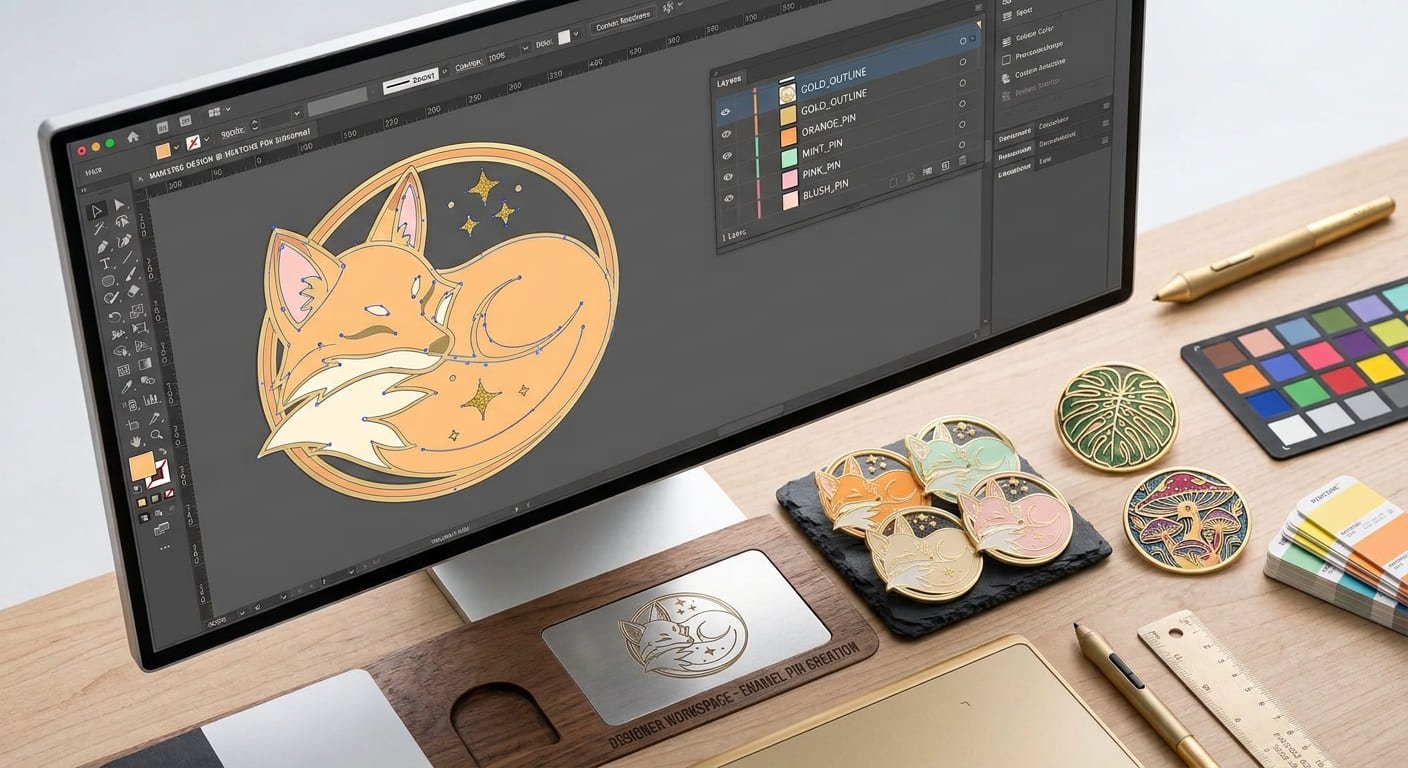
File preparation for manufacturing has its nuances. Here’s a step-by-step guide to help independent artists and small business owners create high-quality vector artwork optimized for production.
Why are vector graphics essential for manufacturing processes?
Raster and vector graphics serve distinct purposes—but only vector files deliver the precision and scalability needed for manufacturing.
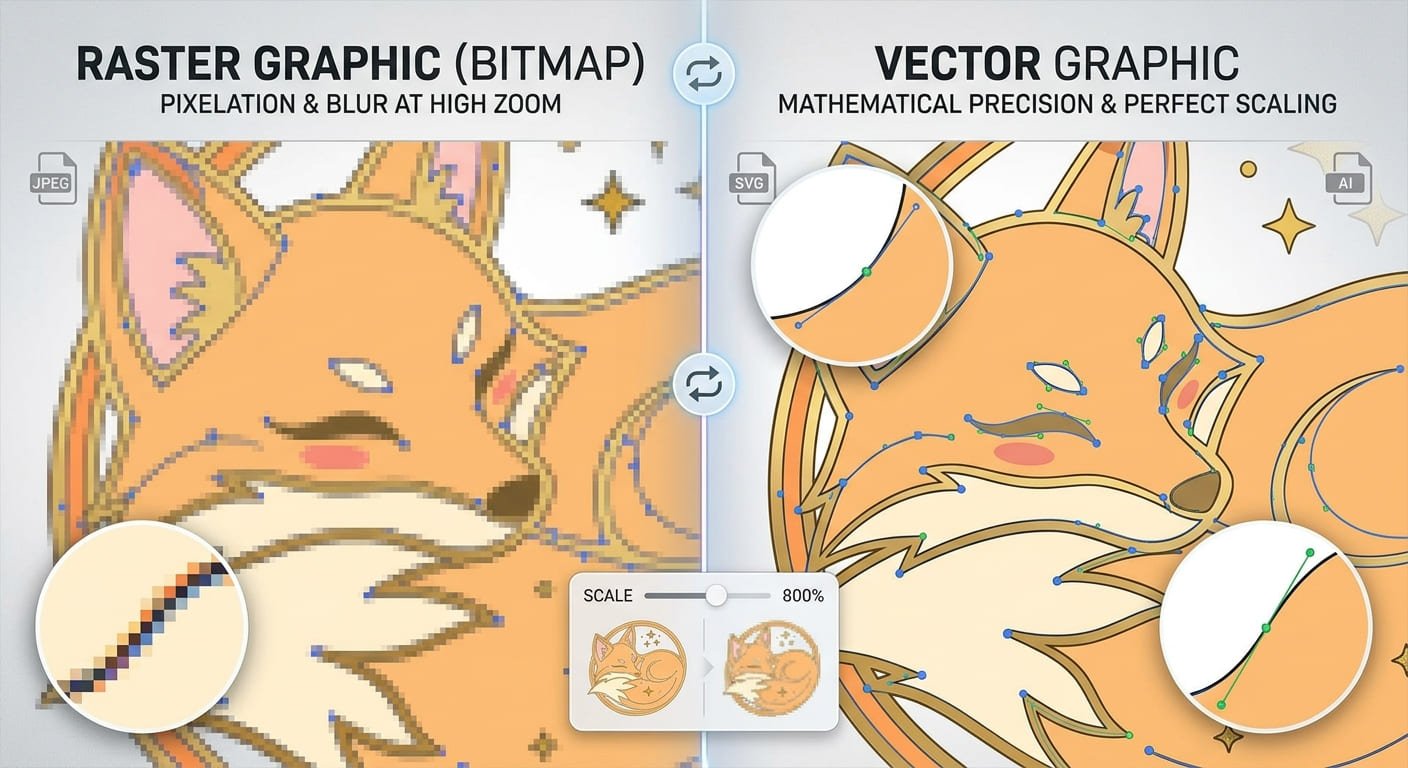
Raster graphics, like PNGs and JPGs, lack the scalability required for production tools2, making vector graphics essential for maintaining quality and accuracy in manufacturing.
Raster files are pixel-based, which means their resolution is fixed. When you attempt to scale a raster image, pixelation occurs, leading to blurred details. This is a major issue during manufacturing because precision is critical for processes like cutting molds, plating, or CNC machining3.
Vector graphics, on the other hand, are composed of paths defined by mathematical equations. These paths scale infinitely without losing quality, which makes vector graphics perfect for precision-dependent tasks like enamel pin production. For example:
- Lines and shapes stay crisp, regardless of size.
- Colors and gradients render accurately without distortion.
- Production software can interpret the paths for machines, ensuring consistency.
If your artwork isn’t in vector format, manufacturers have to recreate it—often at additional cost, time, and risk of losing design details4.
Can you just export your illustration to vector format?
It’s a common misconception that simply exporting a raster file to a vector format, like an SVG or AI, is sufficient.
Converting a raster file to a vector format doesn’t automatically make it vector artwork. Properly prepping your design ensures it’s production-ready and compatible with the machines used in manufacturing.
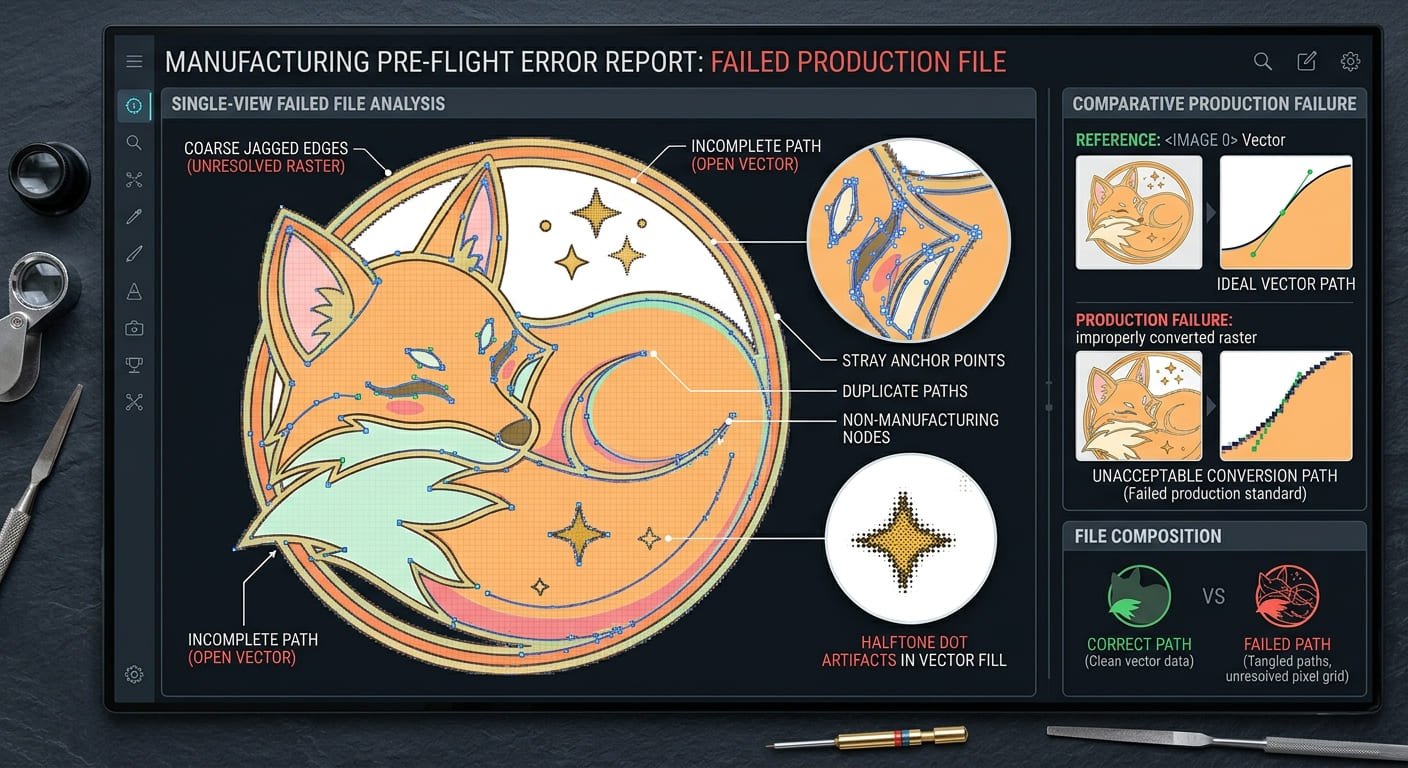
When you “save as” or “export” using built-in tools, you often end up with files that still contain raster data. While the file might look acceptable on-screen, imperfections can create significant production problems5, such as:
- Undefined edges or outlines.
- Unscalable elements that are pixelated upon zooming.
- Misaligned shapes or artifacts.
The key step here is vectorization—converting all the paths, shapes, and text into defined, scalable vector data. This goes beyond exporting and involves using vector tools to refine every aspect of your design.
What are the common mistakes when vectorizing artwork?
Even with the right tools, there are common mistakes designers make when converting their artwork to vector graphics.
Missteps in sizing, alignment, and file precision can affect production time, increase costs, or compromise the final product’s quality6.
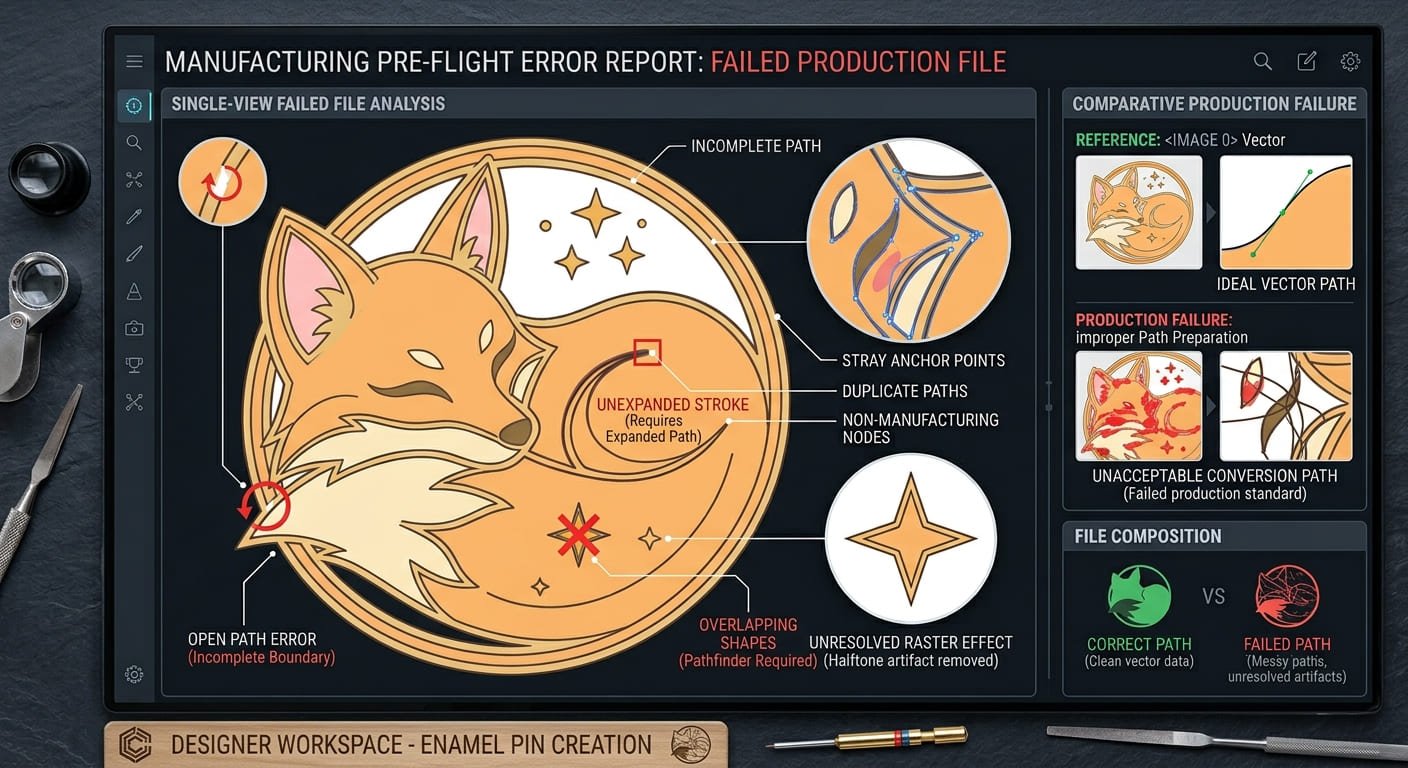
Here are the three most common issues I’ve encountered with customer files:
-
Incorrect (or mismatched) sizes:
- Designers often send artwork that’s either too small or not to scale, creating challenges with intricate features or proportions for production. Artwork for enamel pins, for instance, must be detailed enough to withstand scaling down while keeping important details legible.
-
Open paths and stray points:
- An incomplete or broken path confuses production software, leading to misaligned cuts or gaps in enamel filling. Cleansing your file of stray points and overlapping paths ensures smoother production.
-
File compatibility issues:
- Some file formats, while exportable from vector software, might not be compatible with the manufacturer’s system. Always confirm the file type (e.g., AI, EPS, or vectorized PDF) and check for flattened layers to avoid artwork rejection.
To avoid these issues, use design tools that allow precise control and closely follow the recommended file requirements from your manufacturer.
How can you efficiently convert illustrations to vector artwork?
Here’s the good news: converting your illustrations to vector artwork can be systematic and straightforward with the right approach.
Tools like Adobe Illustrator, CorelDRAW, or free options like Inkscape allow you to vectorize designs by tracing outlines and creating scalable artwork. Focus on fine-tuning paths, maintaining detail, and exporting to production-compatible formats.
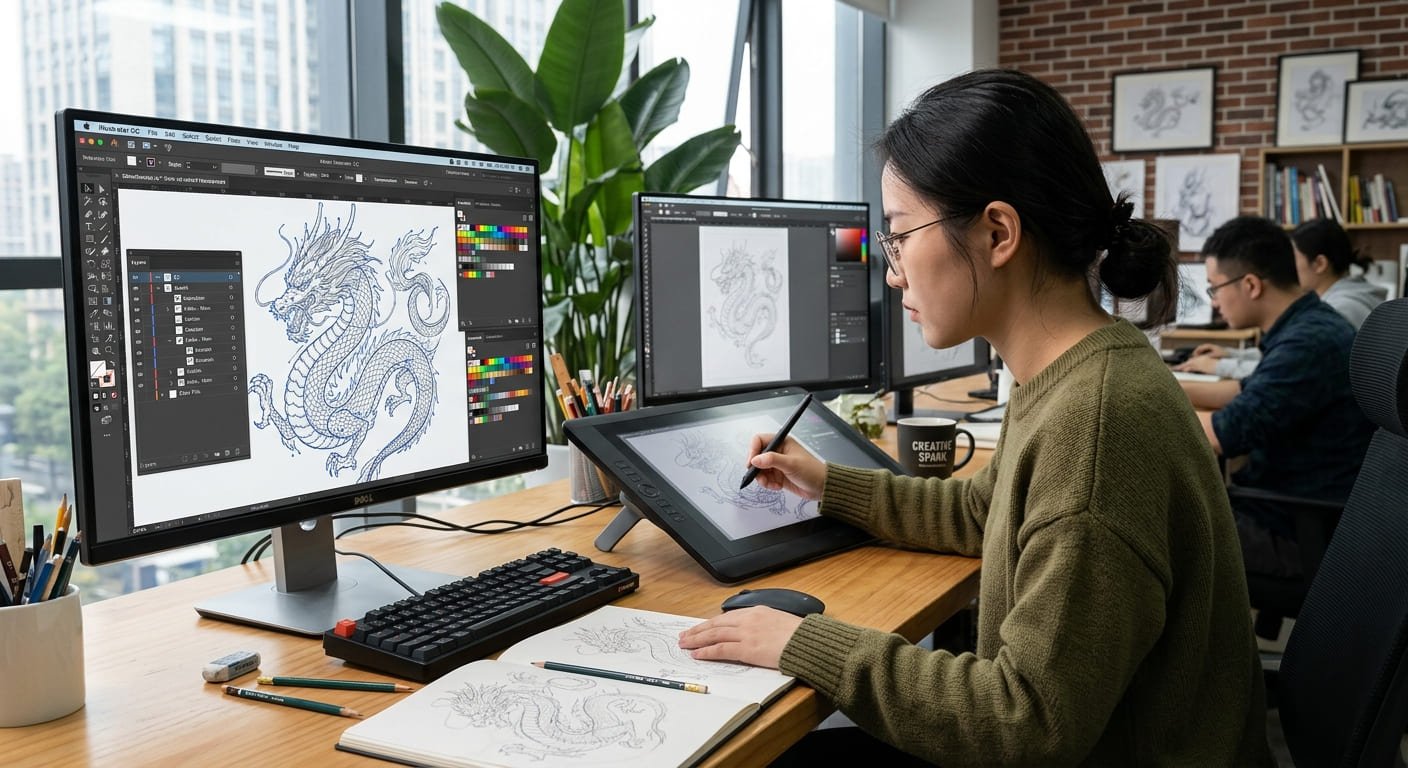
Here’s a step-by-step workflow to ensure efficiency and quality:
1. Plan your design for scaling
Before vectorizing, prep your artwork with the production size in mind:
- Work at the desired final size or at least in proportion.
- Simplify excessive details for smaller formats (e.g., small pins struggle with fine text or thin lines).
2. Use auto-trace sparingly
Many tools offer an “auto-trace” feature, but results can be inconsistent. Manually adjust traced paths to ensure clarity, alignment, and clean edges.
3. Refine strokes, fills, and layers
Convert strokes into filled paths where necessary to define edges precisely. Simplify layers by merging overlapping shapes and arc paths.
4. Add bleed and buffer zones
For manufacturing, account for bleed zones and alignment tolerances7 to prevent accidental border mismatches or gaps in enamel filling.
5. Export to manufacturer’s standards
Finalize your design in the file type specified by the manufacturer (e.g., vectorized PDFs or AI files). Avoid leaving typefaces as editable fonts—convert text to outlines.
Following these steps minimizes the guesswork and reduces back-and-forth corrections during production.
Frequently Asked Questions
What’s the best file format for manufacturing?
Typically, manufacturers prefer vector file formats like AI, EPS, or PDF (vectorized). Always confirm with your specific factory, as some systems may have unique requirements.
Can a manufacturer convert raster to vector for me?
Some manufacturers offer this service, but it often comes with an added fee. Additionally, their interpretations may not fully match your original design intent, so it’s best to vectorize your work beforehand.
Why does scaling matter so much for enamel pins?
Because enamel pins are small in size, scaling ensures all important details like text, line thickness, or small design elements remain legible and manufacturable at reduced dimensions.
Conclusion
Converting digital illustrations to vector artwork is a critical step in ensuring your designs survive the leap from screen to production. Vector files provide the scalability, precision, and compatibility needed for manufacturing processes like enamel pin production. Avoid common mistakes by refining paths, ensuring proper scaling, and exporting in the correct format. Take the time to get it right upfront, and you’ll save time, money, and stress down the road.
Ready to create your next enamel pin design? At HiPinny, we specialize in working with designers to turn vectorized artwork into stunning pins with precision and care. Contact us to learn more about our production process!
"Why CAD File Preparation Matters in PCB Manufacturing", https://henwaytech.com/news/why-cad-file-preparation-matters-in-pcb-manufacturing/. Studies on manufacturing processes highlight that improper file preparation, such as non-vectorized designs, can lead to production delays, quality issues, and unusable outputs, particularly in precision-dependent industries like enamel pin production. Evidence role: general_support; source type: research. Supports: The challenges and consequences of improper file preparation in enamel pin production.. ↩
"Vector vs. Raster Images: Choosing the Right Format", https://pavilion.dinfos.edu/Article/Article/2223089/vector-vs-raster-images-choosing-the-right-format/. Educational resources explain that raster graphics are resolution-dependent and unsuitable for scaling, whereas vector graphics maintain precision and scalability, making them ideal for manufacturing applications. Evidence role: definition; source type: education. Supports: The differences between raster and vector graphics and why vector graphics are essential for manufacturing.. ↩
"Why is CNC Precision Machining Important?", https://www.goodwin.edu/enews/cnc-precision-machining/. Institutional guides on manufacturing emphasize that precision is essential for CNC machining, mold cutting, and plating to ensure accurate and consistent production outcomes. Evidence role: mechanism; source type: institution. Supports: The necessity of precision in manufacturing processes like CNC machining, mold cutting, and plating.. ↩
"The Myth of the Vector File - Tom Froese - Medium", https://tomfroese.medium.com/no-you-dont-need-to-send-vector-files-89bb403fa75e. Research on manufacturing workflows indicates that non-vectorized artwork often requires manual recreation, leading to increased costs, extended timelines, and potential loss of design fidelity. Evidence role: general_support; source type: research. Supports: The additional costs, time, and risks associated with manufacturers recreating non-vectorized artwork.. ↩
"Vector-borne diseases", https://www.who.int/news-room/fact-sheets/detail/vector-borne-diseases. Educational materials on digital design for manufacturing note that file imperfections, such as undefined edges or unscalable elements, can disrupt production workflows and lead to errors. Evidence role: general_support; source type: education. Supports: The production problems caused by imperfections in vector files.. ↩
"Why Precision Matters: The Role of Accuracy in ...", https://www.bartontool.com/blog/why-precision-matters-the-role-of-accuracy-in-manufacturing. Research on manufacturing design processes shows that errors in sizing, alignment, and file precision can lead to increased production costs, delays, and compromised product quality. Evidence role: general_support; source type: research. Supports: The effects of design missteps like sizing and alignment errors on production time, costs, and quality.. ↩
"Packaging 101: What is Bleed, Trim, and the Safety Zone?", https://www.wcpsolutions.com/news/packaging-101-bleed-trim-safety-zone/. Educational resources on manufacturing design explain that bleed zones and alignment tolerances are critical for avoiding mismatches and gaps during production processes. Evidence role: mechanism; source type: education. Supports: The role of bleed zones and alignment tolerances in preventing production errors.. ↩